
OOLS Committee - Management Site
Groups Help File
The new WiX Groups system is less structured than the Forum used to be and is more akin to the way Facebook works. As part of the process of migrating information Categories and Sub-category headings have all been converted to individual groups.
Groups Overview
This is an example of the new Groups landing page - What you actually see will be different as posts are added.

1
2
3
4
5
6
1
Clicking 'Share Something','Create a Post', 'Photo', 'Video' or 'Gif' opens a window for you to chose the Group that you want to post to.

2
Any new post will always appear at the top on the list
-
Unfortunately, adding a comment to any existing post does not promote that post. - See number
-
To avoid missing any new comments always click the three dots (post top right) and select the follow option.
-
To aid administration occasionally a post may be pinned to top of the list with the lates post post appearing second.
4

3
Clicking the Search option opens a dialogue Box to :-
-
Select Search Posts
-
Select Search Groups
-
Type in the search request
The results appear underneath the Group Search box listed in descending order (latest first).
Click the selected Post/Group to view.

4
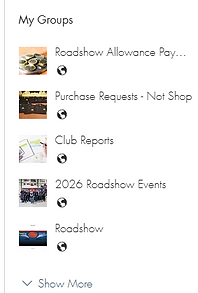
The 'My Groups' panel lists the Groups that as an individual you are already a member of.
Note: Adding a comment to any existing post promotes that post to the top of the 'My Groups' list (page top right)
Underneath the 'My Groups' list will appear another list , this time of 'Suggested Groups', each with a 'Join' option should you choose to do so.

5
'See More', 'Like' and 'Emoji' Options
The 'See More' option only appears when the post content exceeds the default window length. Clicking on it makes the whole post visible
To indicate support for the post originator click on the 'Like' (Thumbs up) and/or on the 'Smiley Face' to select a suitable icon.

6
'Reaction', 'Comment' and 'Views' Options
These icons indicate the number of 'Likes', 'Comments' and 'Views' associated with this post.
Clicking 'Reaction' opens a list of those members who have reacted.
Clicking 'Comment' turns on and off any visible comment and the comment box.
When turned on, by default only one comment is visible. If there are more than one comment then a 'Sort by' option appears.
Comment sorting options:-
-
Newest
-
Oldest
-
Most Reactions
The default setting is 'Newest'
When other members post a 'Comment' the 'Like' and 'Reply' options appear
'Like' allow you to add a supportive icon
'Reply' opens an edition box for your reply. You can add photos, videos, files, icons and there are both 'Publish' and 'Cancel' options
When visible click in the 'Write a Comment' box to add a comment to this the post


18
Click to show all the comments